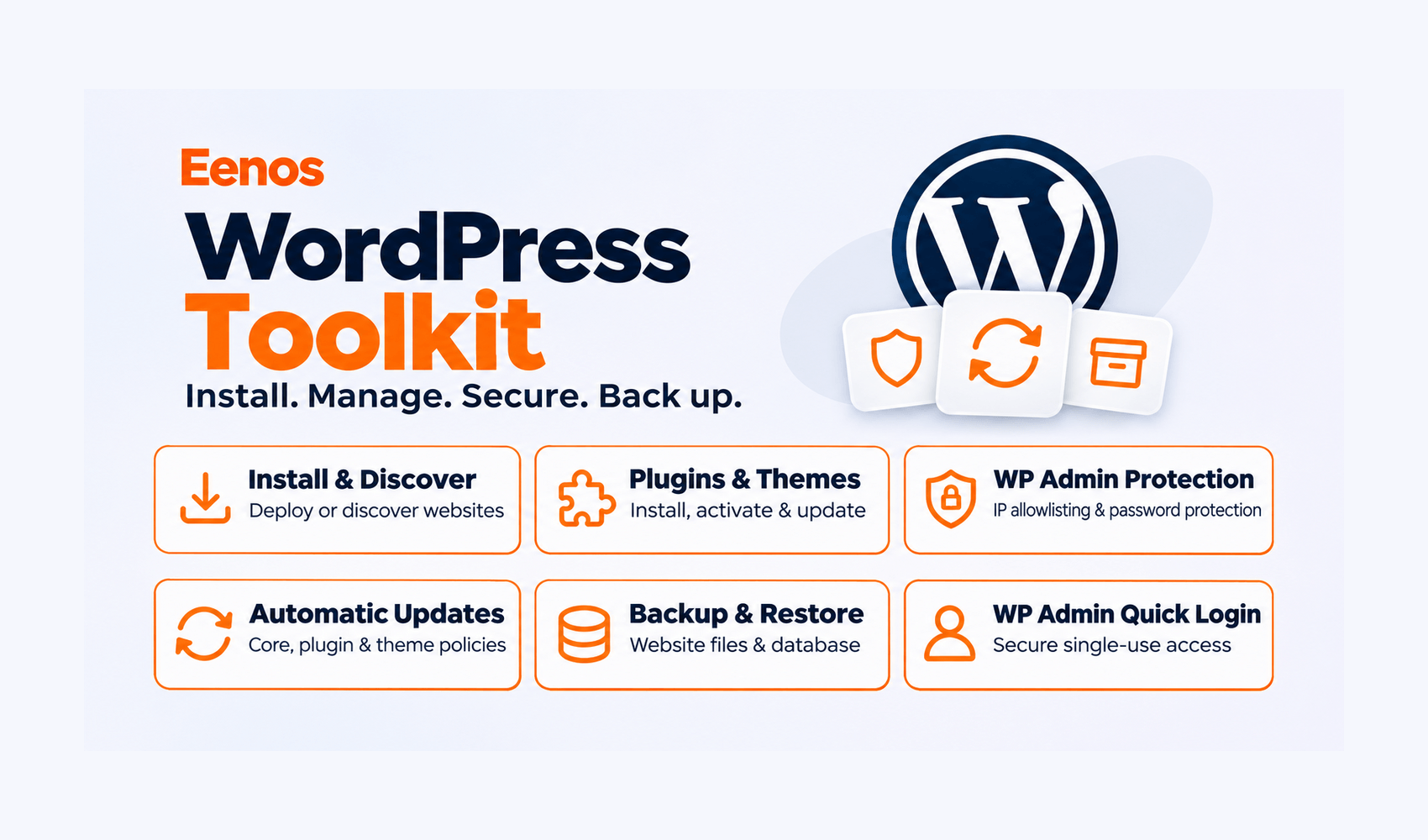
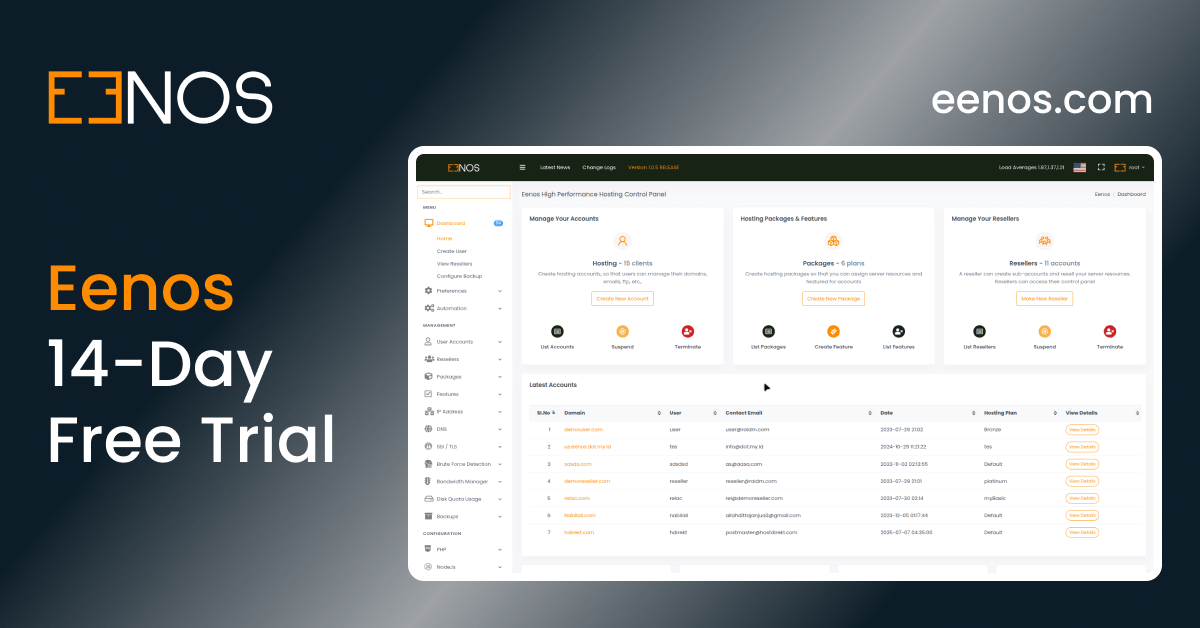
Discover how the new Eenos WordPress Toolkit simplifies website installation, plugin and theme management, WordPress security, updates, and backup operations through a unified Linux hosting control panel.
Managing WordPress websites should not require switching between multiple dashboards, manually configuring server files, or running command-line operations for every routine task.
Whether you manage a business website, maintain several WordPress installations, or provide WordPress hosting services to customers, having a reliable and accessible management interface can make website administration considerably easier.
With Eenos V5, the new Eenos WordPress Toolkit brings comprehensive WordPress management directly into the Eenos hosting control panel.
Powered by the Eenos AppForge application management system, the Toolkit allows hosting users to install WordPress, discover existing websites, manage updates, control plugins and themes, strengthen website security, configure WordPress settings, and perform backups and restorations.
Unlike a basic WordPress installer, the Toolkit is designed to support the ongoing lifecycle of a WordPress website—from its initial installation to regular maintenance and administration.
Let's explore how the Eenos WordPress Toolkit works and why it is a compelling option for modern WordPress hosting.
1. Install WordPress Easily with Eenos AppForge
The Eenos WordPress Toolkit provides a guided installation experience that helps website owners deploy a WordPress website directly from their hosting control panel.
Instead of manually downloading WordPress, creating configuration files, and completing each installation step separately, users can configure their website through a unified installation form.
Install on Domains and Subdomains
Users can select an eligible existing domain or subdomain from their hosting account.
The installation interface provides a searchable domain selector, displays relevant PHP information, and validates available hosting resources.
Users can also create a new subdomain during the installation workflow. Eenos uses its existing subdomain management system to create and configure the new hosting location.
WordPress is installed in the selected domain or subdomain's main document root, with appropriate checks to prevent installation over existing files.
Configure WordPress Administrator Credentials
The installation form includes fields for the website title, administrator username, password, and email address.
Eenos automatically suggests an administrator username and provides password-generation, visibility, regeneration, and clipboard controls.
Administrator passwords are not retained as reusable AppForge management credentials.
Select WordPress Version, Language, and PHP
The Advanced Options section allows users to configure the installation environment.
Available controls include:
- Selecting an approved WordPress release, with the latest available stable version as the default.
- Choosing a supported WordPress language.
- Selecting an installed PHP version or keeping the domain's default PHP configuration.
- Configuring automatic-update preferences for WordPress core, plugins, and themes.
This gives users control over important installation settings without requiring command-line access.
Monitor WordPress Installation Progress
WordPress installation runs as a background AppForge operation.
The interface displays actual installation phases, progress information, and status messages.
If the browser disconnects or the installation progress dialog closes, an accepted installation job can continue running.
Once installation is complete, users can access the website, open WordPress administration, or navigate to My Installations.
Why this matters: Website owners can deploy supported WordPress environments through a guided workflow that is integrated with Eenos domain, PHP, database, and virtual-host management.
2. Manage Multiple WordPress Websites from One Dashboard
Managing several WordPress websites becomes easier when their essential information is available in a single interface.
The My Installations page serves as the central dashboard for WordPress websites registered with the hosting account.
Card View and List View
Eenos provides two display options:
Card View presents website information in a visual layout, making it convenient to browse installations and access common actions.
List View offers a compact alternative for users managing larger numbers of websites.
The interface remembers the selected display mode.
Search, Filtering, and Pagination
Users can search their registered installations and filter results using supported installation-status and automatic-update criteria.
Pagination supports 20, 50, or 100 installations per page.
The dashboard also displays account-wide installation counts and preserves relevant navigation filters.
Detailed Installation Information
Each registered installation can display:
- Website domain and URL.
- Installation directory.
- WordPress version.
- PHP version.
- Installation status.
- Available-update information.
- Automatic-update configuration.
- WP-Admin protection status.
Manage, Refresh, Detach, or Delete
Users can open a website's management page or refresh its saved installation status.
The Detach operation removes the website from AppForge management without deleting its WordPress files.
The Delete WordPress action provides confirmed removal of the website and its dedicated database when the system can verify database ownership. Hosting domain configuration and saved backup archives are preserved.
Why this matters: Users can organize multiple WordPress installations and access common management operations from one account-level dashboard.
3. Discover and Manage Existing WordPress Installations
Not every WordPress website is created through a hosting control panel.
Some websites are installed manually, restored from backups, or transferred from another hosting environment.
Eenos addresses this through Discover WordPress, which allows hosting users to identify supported WordPress installations already present in their hosting account.
Scan Existing Website Locations
The discovery tool scans configured document roots belonging to the authenticated hosting account.
It checks supported primary-domain, addon-domain, and subdomain locations while excluding duplicate roots, aliases, and websites already registered with AppForge.
Scanning begins only when the user selects Start Scan.
Review Discovered Websites
The interface displays live scanning progress, processing counts, the current domain, and any relevant warnings.
Eligible WordPress websites are presented for review.
Users can select individual installations or register multiple eligible installations.
A confirmation dialog displays the chosen websites and their installation paths before registration.
Preserve Existing Website Data
Adding a discovered installation to the Toolkit does not replace its website files or WordPress database.
The registration process verifies supported installation details, account ownership, and document-root identity.
Existing automatic-update preferences are preserved, with unverified policies clearly identified until they can be observed or configured.
Why this matters: Hosting customers can bring supported existing WordPress websites into a central management interface without reinstalling them.
4. WordPress Overview and Site Health Information
Every registered WordPress installation includes a detailed management page.
The Overview tab provides a consolidated view of website information, available updates, automatic-update policies, and site health observations.
Website Information
The Overview interface includes relevant details such as the domain, WordPress version, PHP version, installation directory, database references, table prefix, and available installation or update dates.
WordPress Updates Overview
Users can review recorded WordPress core, plugin, and theme update availability.
Shortcut actions lead directly to the appropriate update-management tabs.
WordPress Site Health
The Toolkit can collect supported observations concerning:
- WordPress database connectivity.
- PHP compatibility and relevant extensions.
- WordPress core file integrity.
- File and directory permissions.
- Website availability.
- SSL certificate information.
Where verified certificate information is available, the interface can display the SSL issuer, expiration date, and remaining validity.
Observations can be refreshed manually. They represent the most recent supported check rather than continuous website monitoring.
Why this matters: Users gain a convenient overview of important WordPress configuration and health information without manually checking each component.
5. WordPress Core Updates and Automatic Update Management
Keeping WordPress updated is an essential part of maintaining a website.
Eenos provides dedicated tools for reviewing and applying approved WordPress core updates.
Manual WordPress Core Updates
The Updates tab displays the current WordPress version and available approved newer releases.
Before an update begins, users can review the target version and relevant warnings.
The workflow requires confirmation and runs the update through an AppForge background job.
Progress information is displayed during the operation, and accepted jobs continue if the browser disconnects.
The update process handles the supported WordPress core and database upgrade steps without resetting administrator passwords.
Automatic WordPress Core Updates
Users can configure three core update policies:
- Disabled.
- Minor updates only.
- Minor and major updates.
Plugin and Theme Automatic Updates
The Toolkit also supports individual automatic-update preferences for plugins and themes, along with forced automatic-update policies where supported.
Automatic updates are performed by WordPress using its scheduling mechanisms. AppForge configures the corresponding policies rather than operating a separate automatic-update scheduler.
Why this matters: Website owners can choose an update policy suited to their maintenance requirements while retaining control over manual upgrades.
For important production websites, creating a backup before a manual core upgrade remains recommended. The standard core upgrade operation does not automatically create a backup.
6. Complete WordPress Plugin Management
Plugins add essential functionality to WordPress websites, but keeping them organized and updated can require ongoing attention.
The Eenos WordPress Toolkit includes a dedicated Plugins tab for managing supported WordPress plugins directly from the hosting control panel.
View Installed Plugins
The Plugin Manager displays installed plugins in a searchable, sortable, and paginated table.
Users can review plugin names, versions, activation status, available updates, and automatic-update settings.
Search and Install Plugins from WordPress.org
Eenos integrates with the official WordPress plugin directory through its WordPress and WP-CLI integration.
Users can search for supported plugins and install them through the Toolkit.
Activate and Deactivate Plugins
Supported plugins can be activated or deactivated without navigating to the WordPress dashboard.
This can be useful when troubleshooting website functionality or temporarily disabling a plugin.
Update Individual or Multiple Plugins
The Toolkit supports updating individual plugins and selected groups of plugins.
Longer operations display progress and results through the management interface.
Automatic Plugin Updates
Users can enable or disable automatic updates for supported individual plugins.
Remove Unused Plugins
Eligible plugins can be deleted after confirmation.
The management system respects relevant compatibility, dependency, and protected-plugin restrictions.
Why this matters: Website owners can manage plugin installation, activation, maintenance, and removal through their hosting control panel while retaining WordPress-compatible operations and safeguards.
7. WordPress Theme Management
The Eenos WordPress Toolkit also includes a dedicated Themes management section.
Themes control a WordPress website's appearance and may require updates or changes over time.
View and Manage Installed Themes
Users can browse installed themes in a searchable and sortable table.
The interface displays version information, active status, supported dependencies, and available updates.
Search and Install New Themes
The Toolkit supports searching the official WordPress theme directory and installing eligible themes.
Activate Themes
Users can activate supported installed themes directly from the control panel.
Theme Updates and Automatic Updates
Individual and selected theme updates are supported, together with per-theme automatic-update controls.
Safe Theme Removal
Eligible inactive themes can be deleted, while active themes and required parent themes are protected against inappropriate removal.
Why this matters: Users can perform common theme maintenance activities without relying entirely on the WordPress administration dashboard.
8. Advanced WordPress Security Management
WordPress security involves more than keeping core files and plugins updated.
Access restrictions, configuration permissions, integrity verification, and web-server protection can all play a role in protecting a WordPress installation.
The Eenos WordPress Toolkit provides a dedicated Security section covering these areas.
WP-Admin Access Protection
Eenos supports additional protection for WordPress administration through a unified interface for supported Nginx and Apache configurations.
Available access-control modes include:
IP Allowlisting
Restrict administrative access to approved IP addresses or supported network ranges.
Username and Password Protection
Require an additional HTTP authentication layer before accessing protected WordPress administration paths.
IP or Password
Allow administrative access when either the configured IP rule or HTTP authentication condition is satisfied.
IP and Password
Require both an approved IP/network condition and valid HTTP authentication.
The configuration interface validates addresses, network ranges, usernames, and passwords.
When applying supported protection rules, Eenos validates the affected server configuration and can restore previous configuration files if an update fails.
WordPress Administrator Account Security
The Toolkit includes administrator-management operations such as:
- Listing existing WordPress administrator accounts.
- Changing administrator passwords.
- Revoking administrator sessions.
- Regenerating WordPress authentication keys and salts.
These controls make several important administrator-security tasks accessible from the hosting panel.
WordPress Core Integrity Verification
Eenos can verify WordPress core checksums and report relevant integrity observations.
This can help identify unexpected differences between installed core files and the expected WordPress release files.
Plugin Integrity Checks
The Toolkit supports integrity verification for applicable WordPress.org plugins.
Unsupported verification cases are identified rather than being incorrectly reported as successful.
WordPress Configuration Protection
The Security section provides checks and controls relating to WordPress configuration exposure.
These include supported wp-config.php permission observations, administrative file-editor protection, debugging exposure checks, and WordPress version-disclosure settings.
Web Server Security Controls
Depending on the active web-server stack and domain configuration, the Toolkit exposes supported protections including:
- XML-RPC restrictions.
- Hotlink protection.
- Frame protection.
- Scanner and unwanted user-agent filtering.
- Referrer-spam filtering.
- Common-exploit filtering.
- SQL-injection and file-injection filtering.
- Symlink protection.
- Slowloris protection.
- HTTP Strict Transport Security (HSTS), subject to HTTPS requirements.
Availability varies by web-server configuration. These controls are not a substitute for a dedicated malware scanner or vulnerability intelligence service.
Why this matters: Eenos brings WordPress-level checks and supported hosting-server protections into one management workflow, reducing the need for users to manually edit server configuration for common protection tasks.
9. Secure WordPress Admin Quick Login
The Eenos WordPress Toolkit includes a convenient WP Admin quick-login feature.
This allows users to access supported WordPress administration environments from the Eenos management page without repeatedly entering an existing administrator password.
How Quick Login Works?
When quick login is requested, the system prepares a short-lived login handoff for an existing WordPress administrator.
The handoff uses a token with a 60-second expiration.
Tokens are bound to the corresponding website, validated during redemption, and consumed only once.
The feature requires matching HTTPS website URLs and a valid TLS connection.
It does not create a new WordPress administrator or reset an existing administrator password.
If quick login cannot be prepared, users can continue through the ordinary WordPress login process.
Why this matters: Quick login provides a convenient way to move from the hosting control panel into WordPress administration while avoiding the need to store reusable administrator passwords in AppForge.
10. WordPress Backup and Restore Management
Backups are an important part of maintaining a WordPress website.
Eenos includes a dedicated Backups tab for creating and restoring supported WordPress website backups.
Complete Website and Database Backups
Users can create a manual backup containing WordPress website files and the associated database.
Archives are stored in a private directory under the hosting account:
Downloads/wordpress-backups/
Backup archives contain a manifest, database export, and website files.
Review and Download Backups
The Backups tab displays available compatible archives, including filename, size, creation date, and recorded WordPress version information.
Users can download backups through authenticated FileStudio links or open the backup directory directly.
Restore a WordPress Website
Users can select a compatible backup and initiate restoration after confirmation.
The system validates the backup archive and checks relevant account, domain, installation, database, and file-path information before restoring data.
Restoration is restricted to the appropriate managed website identity.
Background Backup and Restore Progress
Backup and restoration tasks run as background operations.
A Current Operation panel displays progress, processing stages, and completion or failure information.
Accepted operations can continue after navigation or browser disconnection.
Why this matters: Users can create and restore complete WordPress website backups through the hosting panel without manually exporting the database and website files as separate tasks.
Backup creation and restoration are manual in the current Toolkit. Automated scheduled backups, remote backup destinations, and cross-domain restoration are not included in this feature.
11. WordPress Maintenance, PHP, and Debugging Tools
The Toolkit provides a Tools tab for everyday website maintenance and runtime configuration.
WordPress Maintenance Mode
Users can enable or disable supported WordPress maintenance mode.
This is useful when performing planned website changes and wanting to restrict normal visitor access temporarily.
WordPress Debug Mode
Debugging controls allow users to enable or disable WordPress debug mode and debug logging.
These controls do not automatically enable visitor-facing error display.
PHP Version Selection
Users can choose an installed PHP version through the existing Eenos PHP management integration.
This helps website owners manage the PHP runtime associated with their WordPress installation.
Why this matters: Common maintenance and runtime configuration operations are available directly from the WordPress management page.
12. Manage WordPress Settings Without Opening WP Admin
Eenos also provides a dedicated Settings tab for supported WordPress configuration options.
Users can update common website preferences directly from the hosting panel.
General Website Settings
Manage the site title, tagline, administrator email, website language, and search-engine visibility.
Date and Time Settings
Configure the WordPress timezone, date format, time format, and first day of the week.
Content Settings
Manage supported content preferences, including posts per page and default comment settings.
Permalink Configuration
Select predefined permalink formats or use a validated custom permalink structure.
Automatic Update Policies
Configure WordPress core, plugin, and theme automatic-update preferences.
Why this matters: Users can manage several common WordPress settings through the hosting control panel without switching into a separate website administration interface.
13. Built for Secure Multi-Account Hosting
Eenos WordPress Toolkit is designed to operate within the hosting account management environment.
Each hosting user accesses the WordPress installations belonging to their account.
Feature access is managed through the Eenos administrator and reseller feature-management interfaces.
Account-Level Isolation
AppForge validates account ownership and relevant operation permissions.
Supported WordPress operations are executed under the appropriate hosting account identity.
Background Task Management
Longer operations, such as WordPress installation, core updates, and backup restoration, use controlled background jobs.
The system tracks task progress and maintains relevant operation results.
Application and Hosting Integration
The WordPress Toolkit integrates with existing Eenos domain management, PHP selection, database allocation, virtual-host configuration, FileStudio, and account permission systems.
This approach provides a consistent hosting management experience instead of treating WordPress administration as an unrelated activity.
14. Why Choose Eenos for WordPress Management?
Several hosting control panels provide WordPress management features. Eenos takes an integrated approach by bringing WordPress installation, website management, security controls, and backup operations together inside its hosting platform.
A Unified WordPress Management Experience
Users can manage supported installations, WordPress updates, plugins, themes, security, settings, and backups through a consistent interface.
Strong Hosting and Web Server Integration
WordPress management works alongside existing domain, PHP, virtual-host, account ownership, and file-management operations.
Flexible WordPress Security Controls
Eenos provides multiple WP-Admin access protection modes, including IP-based and additional password-based restrictions, along with applicable web-server protections.
WordPress Management Without Reusable Admin Password Storage
The quick-login feature uses short-lived, single-use handoff tokens instead of storing reusable administrator passwords as AppForge credentials.
Detailed Background Operation Feedback
Long-running installations, updates, and backup tasks provide progress information and can continue independently of the browser after they have been accepted.
Integrated Controls for Hosting Providers
Administrators and resellers can manage WordPress Toolkit availability through the hosting feature-management system.
These capabilities make Eenos an attractive choice for hosting providers who want WordPress administration closely integrated with their Linux hosting management environment.
15. Eenos WordPress Toolkit vs. cPanel, Plesk, and DirectAdmin
Choosing a WordPress hosting control panel depends on more than the ability to install WordPress.
Website owners and hosting providers should also consider updates, security, backups, application management, and the relationship between WordPress tools and the underlying hosting environment.
Eenos WordPress Toolkit provides broad everyday website-management functionality through a native AppForge integration.
cPanel and Plesk also provide extensive WordPress management capabilities, with some advanced functionality depending on the selected product edition.
DirectAdmin provides a built-in WordPress Manager, while additional tools such as Softaculous can extend WordPress management functionality.
For hosting providers evaluating alternatives, Eenos offers a compelling combination of integrated WordPress management, server-level security controls, and hosting account management.
The right choice depends on the operations your customers need. Advanced workflows such as automated staging, cloning, and remote backup destinations should be evaluated separately because they are not part of the current Eenos WordPress Toolkit.
16. Who Can Benefit from Eenos WordPress Toolkit?
Web Hosting Providers
Offer WordPress installation and management capabilities directly through the hosting control panel, with access controlled through hosting feature lists.
Website Owners
Manage updates, plugins, themes, security settings, and backups without needing direct server administration access.
Web Developers
Use integrated WordPress configuration, PHP selection, debugging, and maintenance controls during website development and ongoing maintenance.
Digital Agencies
Manage multiple WordPress installations within their eligible hosting accounts using the My Installations dashboard and its management tools.
Resellers
Provide supported WordPress management capabilities to customers through the reseller hosting environment and feature-management configuration.
Conclusion: WordPress Management Made Easier with Eenos 5
The Eenos WordPress Toolkit is one of the major new features introduced with Eenos 5.
By combining guided WordPress installation, existing-site discovery, plugin and theme management, automatic-update controls, advanced security features, convenient administrator access, and manual website backup and restoration, Eenos provides a comprehensive solution for everyday WordPress administration.
Its integration with Eenos hosting services means users can manage WordPress alongside domain configuration, PHP settings, file management, and other hosting operations.
For hosting providers seeking a Linux hosting control panel with integrated WordPress management, Eenos offers a powerful alternative worth evaluating.
Discover WordPress management with Eenos 5 and experience a more unified approach to website hosting and administration.
Visit Eenos to learn more, or explore the Eenos 5 release notes for additional features and improvements.
Eenos WordPress Toolkit vs. cPanel, Plesk, DirectAdmin, and Softaculous
Choosing the right WordPress management solution is important for hosting providers, developers, and website owners. While several control panels offer WordPress installation and management capabilities, their features, integration methods, and security controls differ.
Eenos 5 introduces a comprehensive WordPress Toolkit integrated into its AppForge application management system, providing website installation, discovery, updates, plugin and theme management, security, and backup operations directly from the hosting user panel.
WordPress management feature comparison
Comparison based on documented product capabilities, November 2026. Scroll horizontally to view all products on smaller screens.
| Feature |
Eenos |
cPanel |
Plesk |
DirectAdmin |
Softaculous |
| WordPress Installation |
Yes | Yes | Yes | Yes | Yes |
| Existing WordPress Discovery |
Yes | Yes | Yes | Yes | Yes |
| Centralized Installation Dashboard |
Yes | Yes | Yes | Yes | Yes |
| Plugin Management |
Yes | Yes | Yes | Limited | Yes |
| Theme Management |
Yes | Yes | Yes | Limited | Yes |
| WordPress Core Updates |
Yes | Yes | Yes | Limited | Yes |
| Automatic Update Policies |
Yes | Yes | Yes | Limited | Yes |
| Manual Website Backups |
Yes | Yes | Yes | Separate Tools | Yes |
| Backup Restoration |
Yes | Yes | Yes | Separate Tools | Yes |
| WordPress Admin Quick Login |
Yes | Yes | Yes | Limited | Yes |
| Administrator Password Management |
Yes | Yes | Yes | Yes | Yes |
| WordPress Core Integrity Checks |
Yes | Yes | Yes | Not documented | Not documented |
| WP-Admin Password Protection |
Yes | Yes | Yes | Separate Configuration | Hosting Configuration |
| WP-Admin IP Allowlisting |
Yes | Configuration-dependent | Configuration-dependent | Separate Configuration | Hosting Configuration |
| Maintenance Mode |
Yes | Yes | Yes | Not documented | Yes |
| Debug Controls |
Yes | Yes | Yes | Not documented | Yes |
| PHP Version Selection |
Yes | Hosting Panel | Hosting Panel | Hosting Panel | Hosting Panel |
| WordPress Settings Management |
Yes | Yes | Yes | Limited | Yes |
| Hosting Feature Manager Integration |
Yes | Yes | Yes | Yes | Integration-dependent |
| Background Operation Progress |
Yes | Yes | Yes | Operation-dependent | Operation-dependent |
Comparison notes: This table compares documented built-in functionality, not every feature obtainable through third-party plugins. DirectAdmin's built-in WordPress Manager focuses primarily on installation, website discovery, user-password management, database configuration, and removal. Softaculous is a separate application installer and WordPress management solution rather than a complete hosting control panel. cPanel and Plesk capabilities can vary by edition, license, and hosting-provider configuration.
Why choose Eenos for WordPress management?
Integrated WordPress and hosting administration
Eenos combines WordPress management with native domain administration, PHP selection, database allocation, web-server configuration, and file management.
Advanced WP-Admin protection
Eenos offers IP allowlisting, HTTP authentication, and combined access policies through a unified interface supporting applicable Apache and Nginx configurations.
Secure administrator quick login
Eenos provides a short-lived, single-use WordPress administrator login handoff without storing reusable administrator passwords as AppForge credentials.
Detailed WordPress security controls
The Toolkit includes core and supported plugin integrity checks, administrator session revocation, authentication-key regeneration, configuration exposure checks, and supported web-server security protections.
Integrated backup and restore management
Website owners can manually back up WordPress files and databases, download archives, and restore compatible backups through authenticated, account-scoped operations.
Background task processing
WordPress installation, core upgrades, and backup operations run through AppForge background jobs, with progress reporting and recovery of supported accepted operations after browser disconnection.
Designed for multi-account hosting
Eenos enforces hosting-account ownership, feature permissions, and controlled worker execution, making WordPress management part of the hosting platform's account-isolation model.
Which WordPress management solution should you choose?
For hosting providers seeking integrated WordPress management with granular WP-Admin access controls and native hosting-account isolation, Eenos offers a compelling solution.
cPanel and Plesk also provide comprehensive WordPress management environments, with some advanced functionality depending on the edition.
DirectAdmin provides essential built-in WordPress administration, while Softaculous can extend WordPress management capabilities across supported hosting platforms.
The best solution ultimately depends on your hosting infrastructure, required management features, security policies, and operational requirements.
FAQ
What is the Eenos WordPress Toolkit?
Eenos WordPress Toolkit is an integrated WordPress management system in the Eenos 5 hosting user panel. It supports installation, discovery, core updates, plugin and theme management, security controls, settings, and website backup and restoration.
Can I install WordPress directly from Eenos?
Yes. You can install WordPress on an eligible domain or subdomain, choose a supported WordPress version, language, and PHP configuration, and monitor deployment progress.
Can Eenos manage existing WordPress websites?
Yes. Discover WordPress scans supported account-owned document roots and lets users register eligible existing installations without replacing their website files or databases.
Can I manage multiple WordPress websites from one dashboard?
Yes. My Installations provides card and list views, account-wide counts, search, filters, pagination, and individual website-management actions.
Does Eenos support automatic WordPress updates?
Yes. Eenos can configure disabled, minor-only, or major-and-minor WordPress core update policies, along with supported individual or forced plugin and theme automatic-update policies. WordPress performs the scheduled automatic updates.
Can I install and update WordPress plugins and themes?
Yes. The Toolkit supports searching official WordPress.org directories, installing eligible plugins and themes, managing activation, applying updates, controlling automatic updates, and deleting eligible items.
How does Eenos protect WordPress administration?
Eenos supports WP-Admin IP allowlisting, HTTP username/password protection, combined access policies, administrator password changes, session revocation, authentication-key regeneration, and supported web-server protection controls.
Does Eenos support password-free WordPress admin login?
Yes. For supported HTTPS WordPress installations, Eenos can use a short-lived, single-use login token to hand off an authenticated user to an existing WordPress administrator account.
Can I back up and restore WordPress websites with Eenos?
Yes. The Toolkit provides manual backups containing website files and database data, plus compatible restore operations restricted to the original account, domain, and managed installation. Scheduled and remote backups are not included.
Can I change the PHP version for a WordPress website?
Yes. Users can select an installed PHP version through the WordPress Toolkit's integration with Eenos domain PHP management.
Does Eenos WordPress Toolkit support Nginx and Apache?
Yes. Supported WP-Admin access protection works through both Nginx and Apache configurations. Other web-server protection controls depend on the active stack and domain template.
Is Eenos an alternative to cPanel or Plesk for WordPress hosting?
Yes. Eenos provides integrated installation, website management, updates, security, and manual backups. However, some advanced features available in other products, such as cloning and staging, are not currently included in the Eenos WordPress Toolkit.